Including External Libraries: LVGL LED Display Part 1

Photo of an LED matrix display showing the date, time, a map of the space station's path, and a dial showing the space station's altitude
Have you ever struggled to get compilers to properly include and link third-party libraries in your projects? Ever wondered if a NetBurner was powerful and flexible enough to render graphics to a screen so your project could have an integrated display? Struggle and wonder no further! In today’s post, we’ll guide you through creating a project in NBEclipse (or your preferred text editor using make on the CLI) that can build an application for a NetBurner device. The application will rely on LVGL being built as a static library, and we’ll include and link that build all together in one project/folder structure. If you’d like to keep your projects separate, you can also reference our previous blog post about building and linking external libraries in NBEclipse. Both of these methods should work, it’s just a matter of preference how closely you want your code to exist with library code. This guide was written for NNDK 3.5.2. It should be applicable for all 3.X NNDK releases. LVGL is a small graphics library for rendering GUIs, text, images, shapes, and more. The main project source will exist in the “src” folder, while LVGL will exist in the “lvgl” folder at the root of the project. When building, the application will first build LVGL based on a custom makefile. Then, it will build the application. In further builds, LVGL will only be re-built if its source or dependencies change.

Install

Configure Environment

1. Review the makefile that we’ve added to the lvgl subfolder. This makefile will contain the source files that will need to be built to generate the lvgl static library, instead of using lvgl’s default cmake routine. This also includes special NetBurner rules to simplify the build. The makefile should reference all the source files necessary to build the project, but not unneeded things like the lvgl draw/nxp, drivers or others folders. Importantly, we will output the library .a file to a convenient parent folder for our project to pick up later. This will end up in the root of our project, at obj/release/liblvgl.a whether we use NBEclipse or make:
				
					# Generated static library file name
NAME := liblvgl

OBJDIR := ../obj
# Source files to build
C_SRC += \
$(sort $(wildcard src/*.c)) \
$(sort $(wildcard src/core/*.c)) \
$(sort $(wildcard src/display/*.c)) \
$(sort $(wildcard src/draw/*.c)) \
$(sort $(wildcard src/draw/sw/*.c)) \
$(sort $(wildcard src/draw/sw/blend/*.c)) \
$(sort $(wildcard src/font/*.c)) \
$(sort $(wildcard src/indev/*.c)) \
$(sort $(wildcard src/layouts/*.c)) \
$(sort $(wildcard src/layouts/flex/*.c)) \
$(sort $(wildcard src/layouts/grid/*.c)) \
$(sort $(wildcard src/libs/barcode/*.c)) \
$(sort $(wildcard src/libs/bin_decoder/*.c)) \
$(sort $(wildcard src/libs/bmp/*.c)) \
$(sort $(wildcard src/libs/ffmpeg/*.c)) \
$(sort $(wildcard src/libs/freetype/*.c)) \
$(sort $(wildcard src/libs/fsdrv/*.c)) \
$(sort $(wildcard src/libs/gif/*.c)) \
$(sort $(wildcard src/libs/libjpeg_turbo/*.c)) \
$(sort $(wildcard src/libs/libpng/*.c)) \
$(sort $(wildcard src/libs/lodepng/*.c)) \
$(sort $(wildcard src/libs/lz4/*.c)) \
$(sort $(wildcard src/libs/qrcode/*.c)) \
$(sort $(wildcard src/libs/rle/*.c)) \
$(sort $(wildcard src/libs/rlottie/*.c)) \
$(sort $(wildcard src/libs/thorvg/*.c)) \
$(sort $(wildcard src/libs/tiny_ttf/*.c)) \
$(sort $(wildcard src/libs/tjpg/*.c)) \
$(sort $(wildcard src/misc/*.c)) \
$(sort $(wildcard src/misc/cache/*.c)) \
$(sort $(wildcard src/osal/*.c)) \
$(sort $(wildcard src/stdlib/*.c)) \
$(sort $(wildcard src/stdlib/builtin/*.c)) \
$(sort $(wildcard src/themes/*.c)) \
$(sort $(wildcard src/themes/default/*.c)) \
$(sort $(wildcard src/themes/mono/*.c)) \
$(sort $(wildcard src/themes/simple/*.c)) \
$(sort $(wildcard src/tick/*.c)) \
$(sort $(wildcard src/widgets/*.c)) \
$(sort $(wildcard src/widgets/animimage/*.c)) \
$(sort $(wildcard src/widgets/arc/*.c)) \
$(sort $(wildcard src/widgets/bar/*.c)) \
$(sort $(wildcard src/widgets/button/*.c)) \
$(sort $(wildcard src/widgets/buttonmatrix/*.c)) \
$(sort $(wildcard src/widgets/calendar/*.c)) \
$(sort $(wildcard src/widgets/canvas/*.c)) \
$(sort $(wildcard src/widgets/chart/*.c)) \
$(sort $(wildcard src/widgets/checkbox/*.c)) \
$(sort $(wildcard src/widgets/dropdown/*.c)) \
$(sort $(wildcard src/widgets/image/*.c)) \
$(sort $(wildcard src/widgets/imagebutton/*.c)) \
$(sort $(wildcard src/widgets/keyboard/*.c)) \
$(sort $(wildcard src/widgets/label/*.c)) \
$(sort $(wildcard src/widgets/led/*.c)) \
$(sort $(wildcard src/widgets/line/*.c)) \
$(sort $(wildcard src/widgets/list/*.c)) \
$(sort $(wildcard src/widgets/lottie/*.c)) \
$(sort $(wildcard src/widgets/menu/*.c)) \
$(sort $(wildcard src/widgets/msgbox/*.c)) \
$(sort $(wildcard src/widgets/objx_templ/*.c)) \
$(sort $(wildcard src/widgets/property/*.c)) \
$(sort $(wildcard src/widgets/roller/*.c)) \
$(sort $(wildcard src/widgets/scale/*.c)) \
$(sort $(wildcard src/widgets/slider/*.c)) \
$(sort $(wildcard src/widgets/span/*.c)) \
$(sort $(wildcard src/widgets/spinbox/*.c)) \
$(sort $(wildcard src/widgets/spinner/*.c)) \
$(sort $(wildcard src/widgets/switch/*.c)) \
$(sort $(wildcard src/widgets/table/*.c)) \
$(sort $(wildcard src/widgets/tabview/*.c)) \
$(sort $(wildcard src/widgets/textarea/*.c)) \
$(sort $(wildcard src/widgets/tileview/*.c)) \
$(sort $(wildcard src/widgets/win/*.c))

# Generate a static library in the makefile folder
TARGET_TYPE := lib

# Boilerplate.mk contains all rules to build makefiles for NetBurner devices
include $(NNDK_ROOT)/make/boilerplate.mk


2. There’s also a makefile in the root of the project that includes all C and CPP files in src and src/ui. If you add any new source files, especially new LVGL images/fonts, add them as appropriate. Notice the NBINCLUDE line which allows #include <lvgl.h> to work without full paths and quotes:

				
					NAME    = DisplayApplication
NBINCLUDE += -I"lvgl/src"
CPP_SRC     += \
			src/main.cpp \
			src/Display.cpp \
			src/Screen.cpp \
			src/dma.cpp
C_SRC		+= \
			src/ui/images.c \
			src/ui/screens.c \
			src/ui/styles.c \
			src/ui/ui.c \
			src/ui/ui_image_map.c

XTRALIB		+= $(OBJDIR)/release/liblvgl.a

CREATEDTARGS += obj/htmldata.cpp
CPP_SRC += obj/htmldata.cpp
obj/htmldata.cpp : $(wildcard html/*.*)
	comphtml html -oobj/htmldata.cpp

include $(NNDK_ROOT)/make/boilerplate.mk


3. If you change which fonts are being used, especially builtin fonts like Montserrat, edit lvgl/src/lv_conf.h to set their constant to 1

Optionally Build with Make (CLI)

If you choose to build on the CLI the process is straightforward, though you do need to build lvgl manually. Change the IP address in the command below to point to your SOMRT:

				
					cd lvgl
make -j -e PLATFORM=SOMRT1061
cd ..
make -j load -e DEVIP=192.168.10.150 -e PLATFORM=SOMRT1061


You can omit the PLATFORM and/or DEVIP variables if your Environment Variables are set properly. You’ll only need to build the lvgl library once, and if changes are made.

Optionally Build with NBEclipse

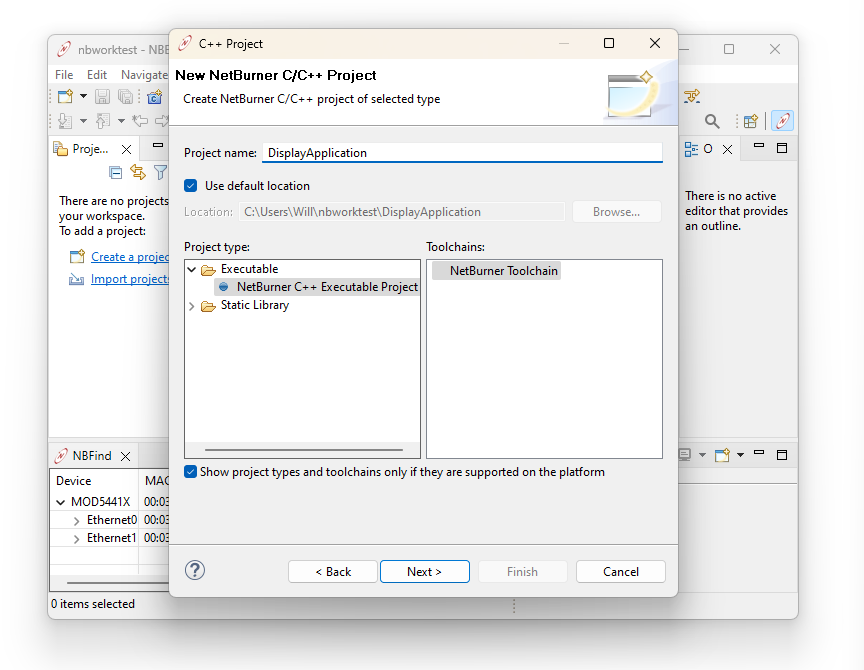
      1. If you prefer to build using NBEclipse, first create a new NBEclipse project. Use the New Project wizard to generate a NetBurner C++ executable project. In this guide, the project name DisplayApplication will be used.
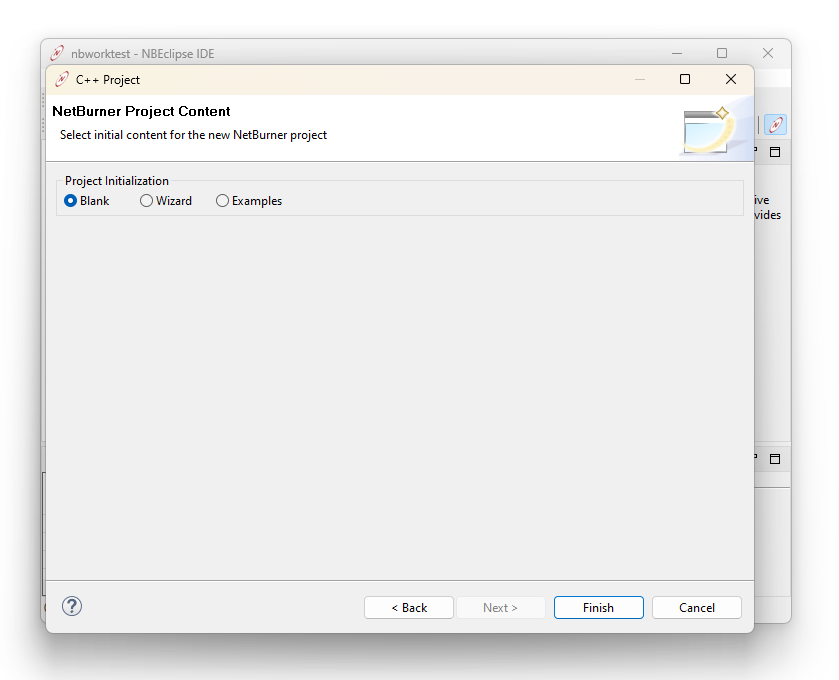
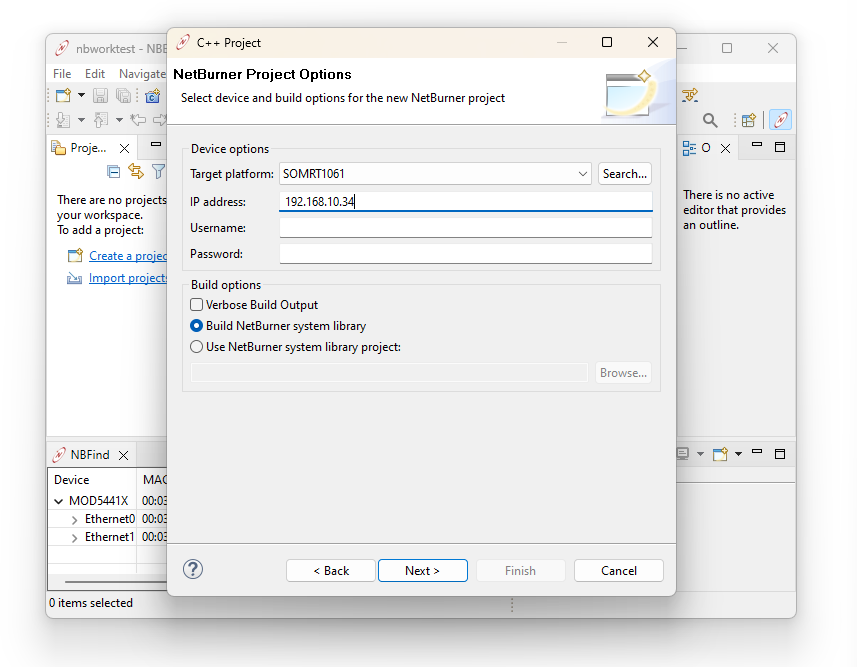
        Screenshot of NBEclipse showing the fifth step of the New Project wizard. The Blank Project Initialization option is selected. Screenshot of NBEclipse showing the fourth step of the New Project wizard. The Target Platform has been set as SOMRT1061 and the IP address has also been set to whatever IP your device is running on, like 192.168.10.34.

        Screenshot of NBEclipse showing the second step of the New Project wizard, titled C++ Project. The Project Name has been filled in as DisplayApplication and the Executable NetBurner C++ Executable Project is selected.
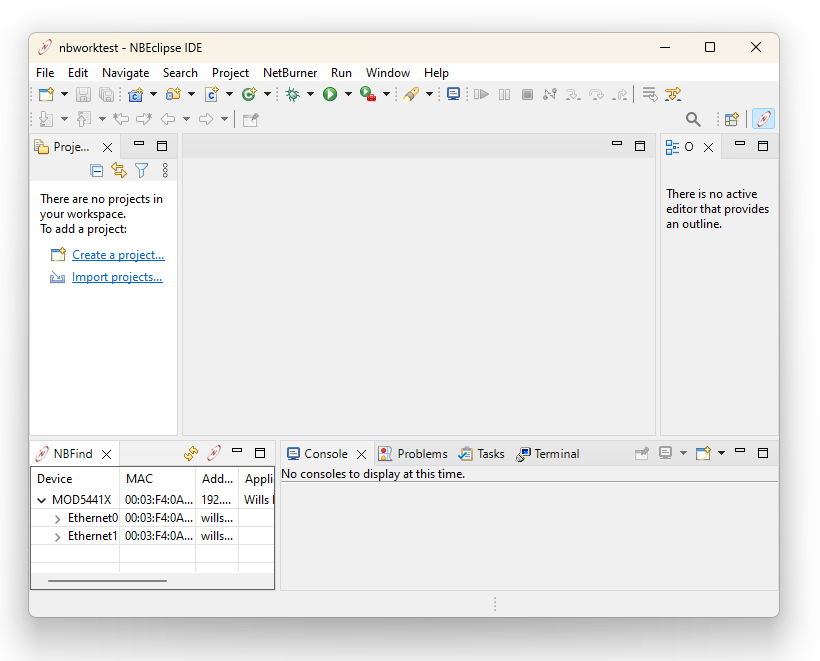
        Screenshot of NBEclipse showing the first step of the New Project wizard. The NetBurner Project option is highlighted. Screenshot of NBEclipse showing the default environment with no project
      2. Copy and paste the src and lvgl folders from the file system directly into the NBEclipse project root, as well as the .eez-project and map.png files.Screenshot of NBEclipse showing the dragging-and-dropping of files from the filesystem into the NBEclipse project rootThe project layout in the project explorer should now look like:
        ⌄ DisplayApplication
            > Build Targets
            > Includes
            ⌄ src
                > ui
            > html
            ⌄ lvgl
                > src
            > overload
            DisplayApplication.eez-project
            DisplayFrame.stl
            makefile
            map.png
            README.md
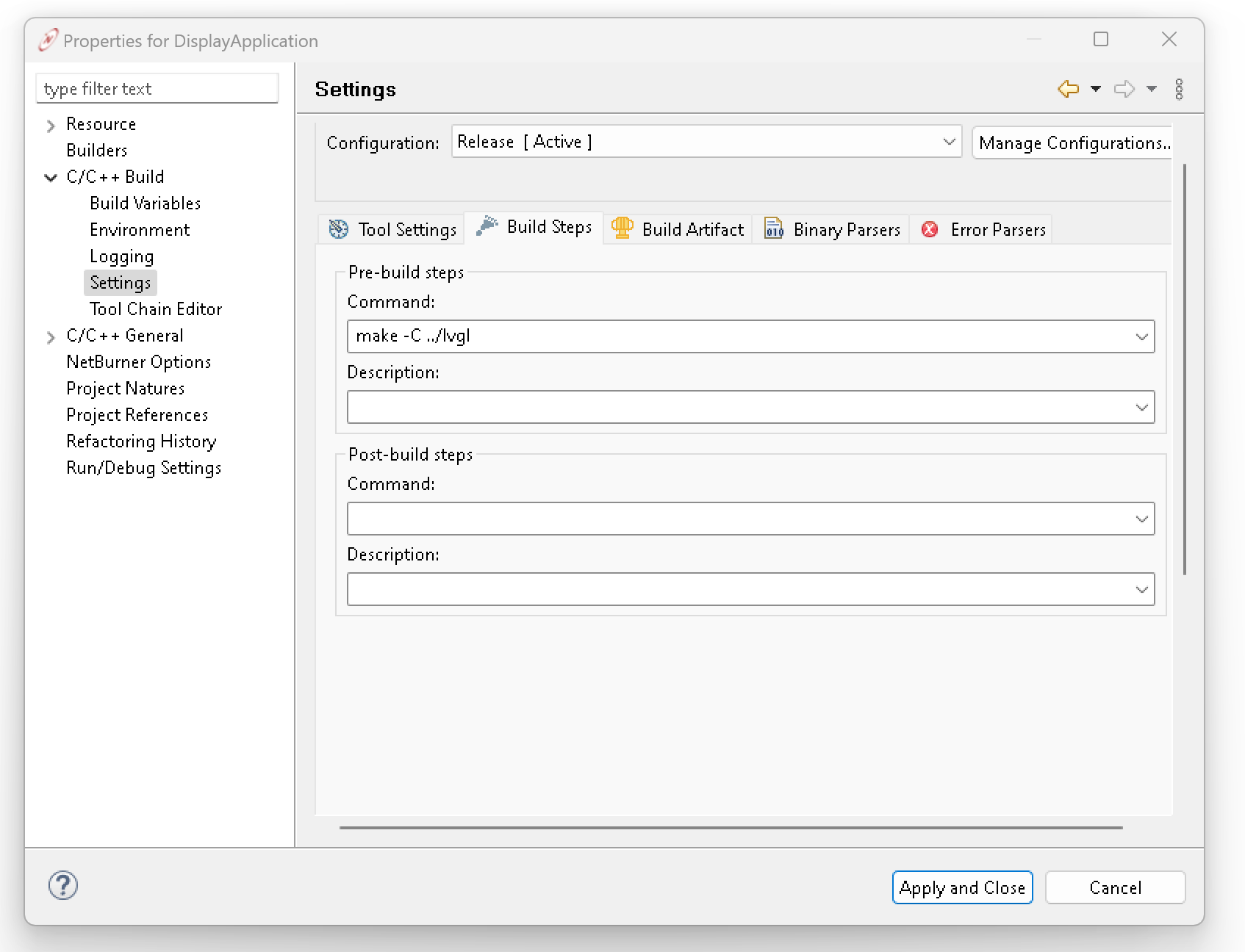
      3. Add a pre-build step to the project. This step will run the LVGL makefile before building the application binary. Note that the makefile in the root of the project is not used by NBEclipse: it’s there for CLI-based workflows.Screenshot of NBEclipse showing the Properties of the project and the Build Steps tab as described below.
        1. Right click on project and select Properties
        2. Click on C/C++ Build -> Settings
        3. Select the tab Build Steps
        4. Add the command to run the makefile make -C ../lvgl
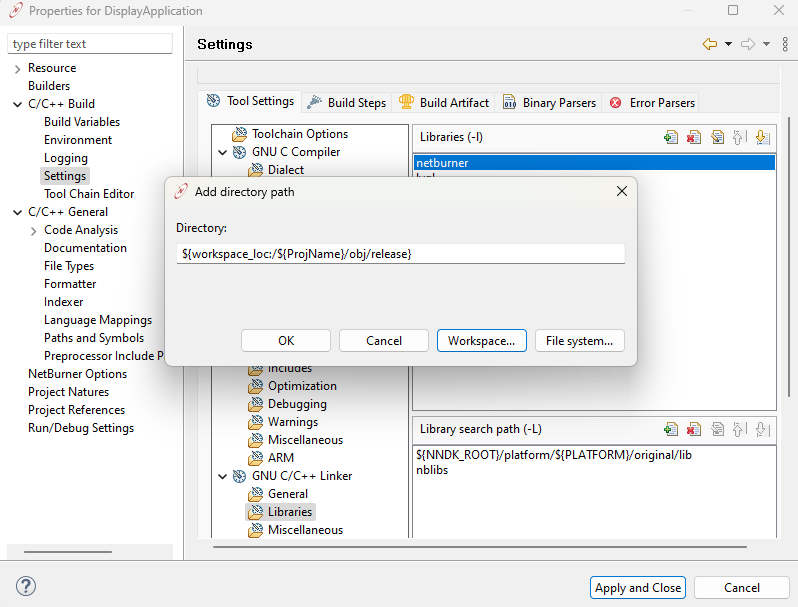
      4. Add the static library and header folders to the project.Screenshot of NBEclipse showing the Properties of the project and the Include Paths pane as described below.
        1. Right click on project and select Properties
        2. Click on C/C++ Build -> Settings
        3. Select the tab Tool Settings
        4. Under GNU C Compiler select Includes.
          1. Under the Include Paths (-I) pane, add the root folder that the static library uses as its base directory when #include statements are used in source. For LVGL, we use "${workspace_loc:/${ProjName}/lvgl/src}".
        5. Repeat the above step for GNU C++ Compiler.
        6. Under GNU C/C++ Linker, select Libraries.Screenshot of NBEclipse showing the Properties of the project and the Libraries pane as described below.
          1. Add lvgl to the Libraries (-l) pane. You may think to add liblvgl.a here, but that would be incorrect. The GNU toolchain always prepends lib and appends the file extension automatically.
          2. Screenshot of NBEclipse showing the Properties of the project and the Library Search Path edit box as described below.
            Add ../obj/release to the Library search path (-L) pane. This is the folder that will contain the liblvgl.a static library that is built by the library makefile.

With these changes in place, the application project will now properly build both the static library and the project binary, and appropriately detect and rebuild changes.

Running
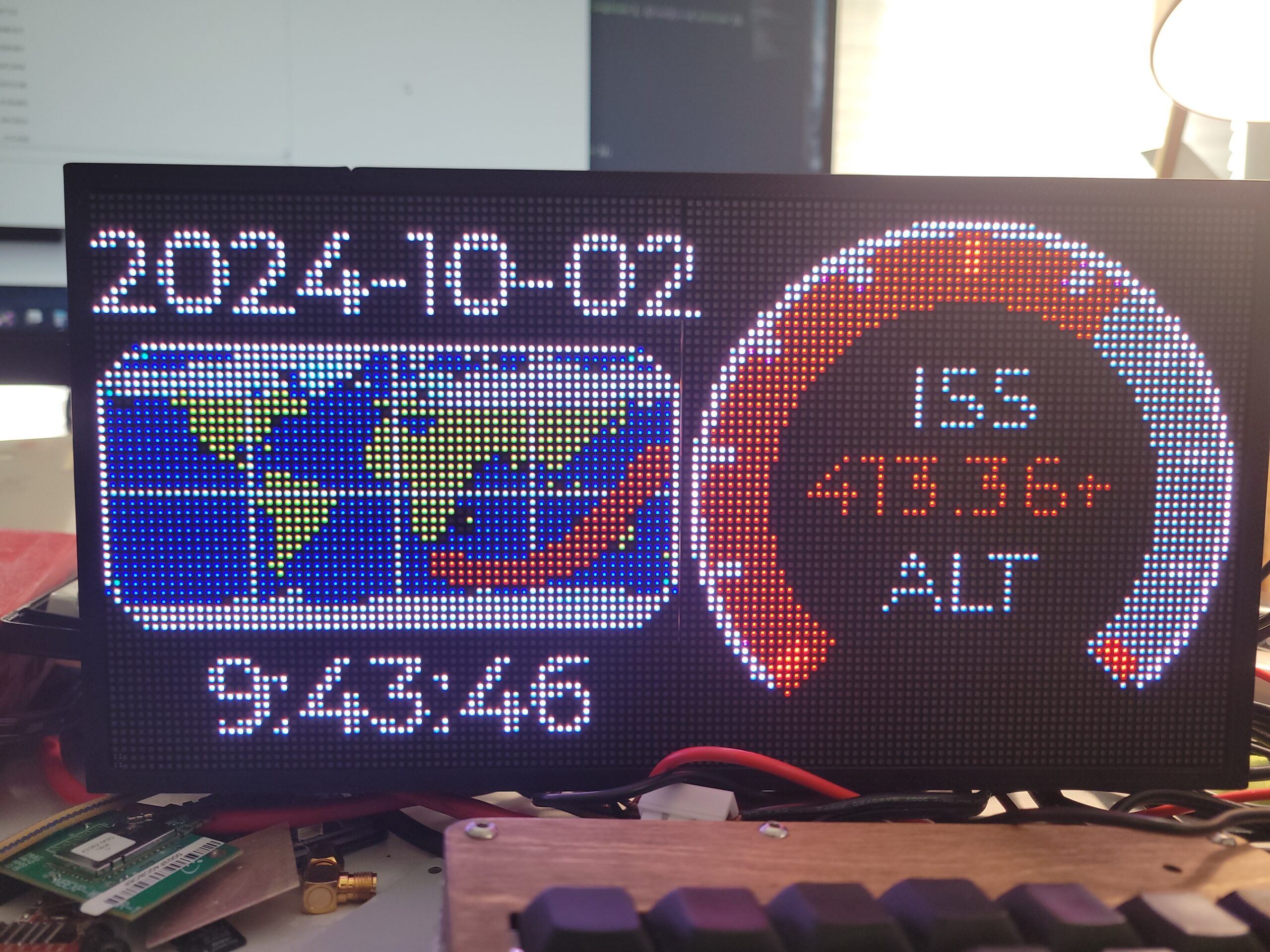
Photo of an LED matrix display showing the date, time, a map of the space station's path, and a dial showing the space station's altitude

We’ll go over designing, building, and connecting the hardware in the next blog post, but for now the code should compile and run on a SOMRT development board with no screen connected.

Assuming an Internet connection via an Ethernet cable that can access https://api.wheretheiss.at/v1/satellites/25544 and get time from pool.ntp.org, a connected display would load the GUI from LVGL into a bitmap buffer, and show the last 75 known positions of the International Space Station on a world map, once per minute. It would also show the current date and time. You can see this on the serial console once a minute with messages like 60 got lat -46 long 137 alt 429.627502showing the ISS coordinates retrieved from the web API.

You can change the time zone and other settings by browsing to your NetBurner device’s Config page, i.e. http://192.168.10.150:20034, and clicking the Expand All button followed by your changes and the red Update Record button.

Designing
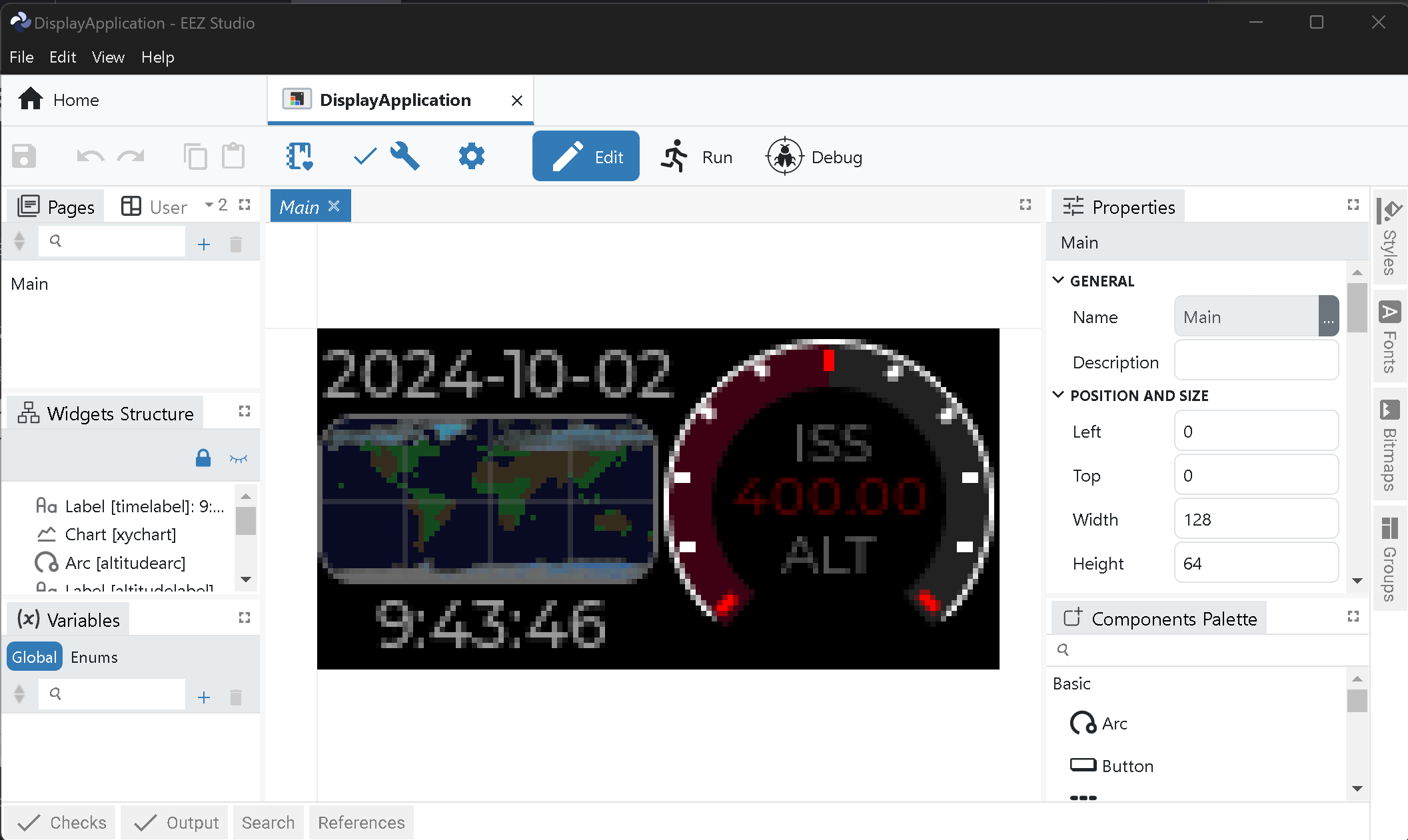
Screenshot of EEZ Studio showing the same UI as the LED matrix

      1. We can easily edit the LVGL GUI design (which outputs C code under the src/ui folder) by opening DisplayApplication.eez-project in EEZ Studio.
      2. Notice that EEZ Studio is set up to generate includes at <lvgl.h> instead of <lvgl/lvgl.h> . This is to reflect the desired project structure, and if your project has a different structure you may want to change this setting.
      3. Feel free to make any desired changes, like clicking on a widget and changing colors. Note that dark colors are chosen to make the display appropriate for a desk. The display can be extremely bright if light colors are used.
      4. Save and Build your EEZ project when done.
      5. Edit main.cpp accordingly if you want to modify GUI elements programmatically: the objects and objects_t struct is defined by EEZ Studio in ui/screens.h and contains any named UI elements. You can see how we make them functional in the body of UserMain().

Developing

The core of LVGL is called inside of UserMain with the lv_init() and lvgl_display_init() functions. The ui_init() function loads the contents of the src/ui folder. UI objects are then made available in the objects variable, so we can adjust their function dynamically as desired inside UserMain. RTOS tasks are also created for LVGL’s  lv_timer_handler and a DisplayTask function that does the work of actually driving the screen.

The LED matrix display driver is implemented in three places: the DisplayTask function which calls functions in dma.cpp to push buffers out to the screen’s pins, the lvgl_flush_cb LVGL callback which draws LVGL’s display buffer into our internal Display object, and finally those Display and Screen objects we’ve implemented in those respective cpp files. We use Gray encoding to store and send color information to the display via PWM and the DMA routine mentioned above. You can see more about driving these RGB LED matrixes on Adafruit’s website and GitHub.

The easiest things to modify are just before and inside the main UserMain loop: tweaking the UI or changing behavior to suit you needs. Feel free to poke around the program and take to the forums to chat about importing your own libraries or setting up your own displays!

EEZ Bugs

Be aware that EEZ Studio has a couple rough edges:

      • Setting the chart dot size lv_obj_set_style_size(chart, 2, 2, LV_PART_INDICATOR) isn’t supported inside EEZ Studio, so we do this in main.cpp instead.
      • When changing a bitmap or other externally-referenced file, its source may need to be re-selected from the filesystem: these files are imported inside the EEZ project and won’t automatically update themselves.
      • When setting bitmaps in EEZ Studio, it may erroneously display the same bitmap across all bitmaps in the project. This should be ignorable and is a UI bug.

Up Next

That’s it for this post, we hope it’s been a useful way to get started with external libraries in your NetBurner project or extending your NetBurner to produce beautiful graphics! Next in this post series we’ll dive into how easy and flexible prototyping with the SOMRT1061 is, and some considerations/examples for those designs, plus producing and assembling your own LED display!

Share this post

Subscribe to our Newsletter

Get monthly updates from our Learn Blog with the latest in IoT and Embedded technology news, trends, tutorial and best practices. Or just opt in for product change notifications.

Leave a Reply