

You know AI can write emails and answer trivia questions for you, and you might even use it to help you write code, but did you know that there are plugins to let AI access complex tools in your development environment? These plugins are written in MCP (Model Context Protocol), which is sort of a LLM-friendly API that describes various third-party commands and how to use them in a standardized way.
We’ve been looking for ways to help developers access and use our suite of tools more easily and effectively, from improved documentation and tooling to dabbling with AI assistants in development environments, and towards that end we’ve produced some MCP tooling that might be useful for NetBurner customers. Consider it an early beta preview: there are still some rough edges but we’d love to hear your feedback about it!
The core piece is a new MCP tool installed in your NetBurner NNDK version 3.5.5+ at nburn/pcbin/netburner_mcp_server.exe (on Windows, there’s a different extension on Mac/Linux.)
If your NetBurner environment is a normal install you don’t have to do anything other than adding this as a MCP tool to your AI development environment of choice. We have used this with: Claude Code on WSL, Linux, and Windows, as well as Claude Desktop on Windows with additional file access MCP tools. It should work with Cursor, Windsurf, or any other local stdio MCP-supporting AI tool.
We’re also trying out a template-based generation strategy for making brand-new NetBurner projects. It’s highly experimental, but may simplify the process of looking at examples and creating a custom project based on common use cases.
Here are installation instructions for Claude, followed by a list of the actual tools exposed. All operations should start by telling the AI to use the NetBurner learn tool.
MCP Installation Instructions
If you’re using Claude Code, you can skip most of these instructions and simply run claude mcp add netburner C:/nburn/pcbin/netburner_mcp_server.exe followed by claude in the directory of your project.

For Claude Desktop, open Settings > Developer and under Local MCP Servers click the Edit Config button. Edit Claude’s JSON configuration file to include the NetBurner MCP Server.
{
  "mcpServers": {
    "NetBurner": {
      "command": "C:/nburn/pcbin/netburner_mcp_server.exe",
      "args": []
    }
  }
}
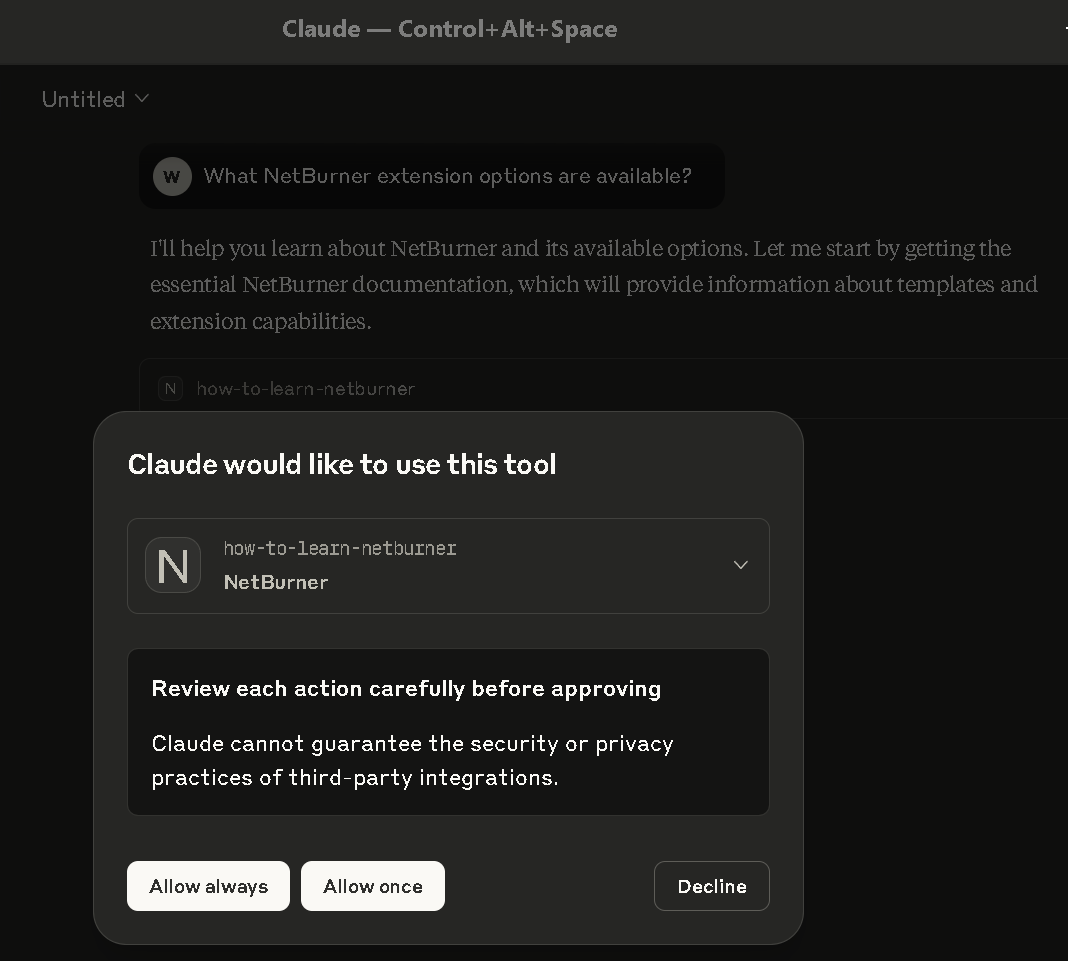
The tools should be available after restarting Claude, and you can use them directly or ask about them:

Template System
When creating a new NetBurner project, you can ask the AI to combine various NetBurner templates to bootstrap your code:


Be sure to tell Claude where you want your project to live, and give Claude filesystem permissions to that folder first, so it saves in the right place. You may want to restart Claude after changing these system-level settings as well, to ensure they apply. Once the templated project is created, the MCP tooling allows your AI agent to build and deploy your project to NetBurner hardware, as well as read error output to debug any issues!
NetBurner MCP Tools Overview
1. Documentation & Learning Tools
netburner:how-to-learn-netburner– START HERE FIRST! Returns essential NetBurner documentation including core concepts and fundamental docs. Must be used before other search tools.
2. Build & Compilation Tools
Note: The make output tools work with cached build results from recent builds in the same project directory.
netburner:netburner-make– Execute NetBurner make build- Common targets:
clean,(no target),load(deploy to device) - Parameters: projectDir, target, platform, deviceIP (for loading), flags, trace, unlock
- Common targets:
netburner:netburner-make-output– Retrieve full stdout/stderr from last build- Parameters: projectDir, stream (stdout/stderr/both), fromLine, lines
netburner:netburner-make-grep– Search through cached build output- Parameters: projectDir, pattern, stream, contextLines, maxLines
netburner:netburner-make-errors– Get structured error analysis from build- Parameters: projectDir, errorTypes, severity
3. Device Discovery & Management
netburner:discover-netburner– Discover NetBurner devices on the local networknetburner:get-netburner-device– Get details for a specific device by IP- Parameters: deviceIP
4. Device Configuration Tools
Note: Some device operations may require username/password if the device has authentication enabled.
netburner:get-netburner-config– Get configuration from a device- Parameters: deviceIP, path (optional), username, password
netburner:set-netburner-config– Set configuration values on a device- Parameters: deviceIP, data, path (optional), username, password, unlock
netburner:get-netburner-schema– Get configuration schema from a device- Parameters: deviceIP, username, password
5. Device Diagnostics
netburner:get-netburner-diag– Get diagnostic information from a device- Parameters: deviceIP, elfFile (optional for stack decoding), username, password
- Important: Check FreeSockets, ExtraIO, and Buffers – if any are under 20, there’s a problem
6. Remote Console Connection Tools
Important: Console tools only work on devices with remote console enabled (requires
#include <remoteconsole.h>andEnableRemoteConsole()in the device code)
netburner:connect-netburner-console– Connect to device console via WebSocket- Parameters: deviceIP, bufferSize (default: 65536), unlock
netburner:disconnect-netburner-console– Disconnect from current consolenetburner:get-netburner-console-status– Get console connection statusnetburner:send-netburner-console– Send command to device console- Parameters: command, addNewline (default: true), unlock
7. Remote Console Output Analysis
netburner:netburner-console-output– Retrieve console output from buffer- Parameters: fromLine, lines, unlock
netburner:netburner-console-tail– Get recent console output (like Unix ‘tail’)- Parameters: lines (default: 50), unlock
netburner:netburner-console-grep– Search console buffer with regex- Parameters: pattern, contextLines, unlock
netburner:netburner-console-errors– Extract error messages from console- Parameters: severity (errors/warnings/all), unlock
netburner:clear-netburner-console– Clear console buffer- Parameters: unlock
8. Development Utilities
netburner:get-netburner-paths– Get NetBurner installation paths- Returns: NBROOT, TOOLCHAINPATH, AIDOCPATH
netburner:addr2line– Convert addresses to file/line/function info- Parameters: elfFile, addresses (array)
9. Database Tools (Restricted Access)
There are also database search tools for finding NetBurner functions, examples, and documentation, but these require explicit user permission and should only be used as a last resort after trying:
- Templates
- Documentation
- Code examples
- Existing code search
We built a detailed complete function database for the AI to use as reference.
This seems to overwhelm the AI with too much available information and the AI got lost. So we put it behind a specific user driven unlock and we may remove the AI function database as it may be more problematic than useful and switch entirely to the template system we created.
The intent is that the AI can’t automatically get access to this database without the User explicitly giving him permission.
If you want to give the AI access to this tool you can do one of three things:
- Run the UnlockDB prompt (if your tool supports prompts) mentioned below.
- Paste the content of
nburn/docs/aidocs/UnlockDb.promptinto the AI. - Tell the AI that the Database unlock code is LowLevelAccess2024
MCP Prompts:
For those tools that support MCP prompts we add three prompts:
ExistingProject:Tells the AI how to work with an existing NetBurner project and how to use AI tools.
NewProject: Tells the AI how to create a net Netburner Project from scratch and use the AI project template system.
UnlockDB: Tells the AI how to unlock the function database (#9 mentioned above).
If your system does not support MCP prompts, you can find the contents of these prompts in *.prompt files in nburn\docs\aidocs
Wrapping Up
This tool is brand new and still under development, so we’d love to hear your feedback about it! Did it help you in your workflow, make it easier to learn the NetBurner ecosystem, or help you understand the documentation?